Cloud projects in the desktop app
The SnoutData desktop app manages your SnoutData Cloud projects from where you work with the data: create a project, start and stop it, open its database, copy its keys, take a backup, switch products on, and delete it. You do not have to open the dashboard or a terminal for any of that.
The app is a third client of the same control plane as the CLI and dashboard.snoutdata.com. Every action here makes the same call they make, with your own session, so your plan's limits and every refusal are the same wherever you ask. When the control plane says no, the app shows its own words: amber for a refusal (for example "a production project is never paused"), red when something went wrong.
Sign in
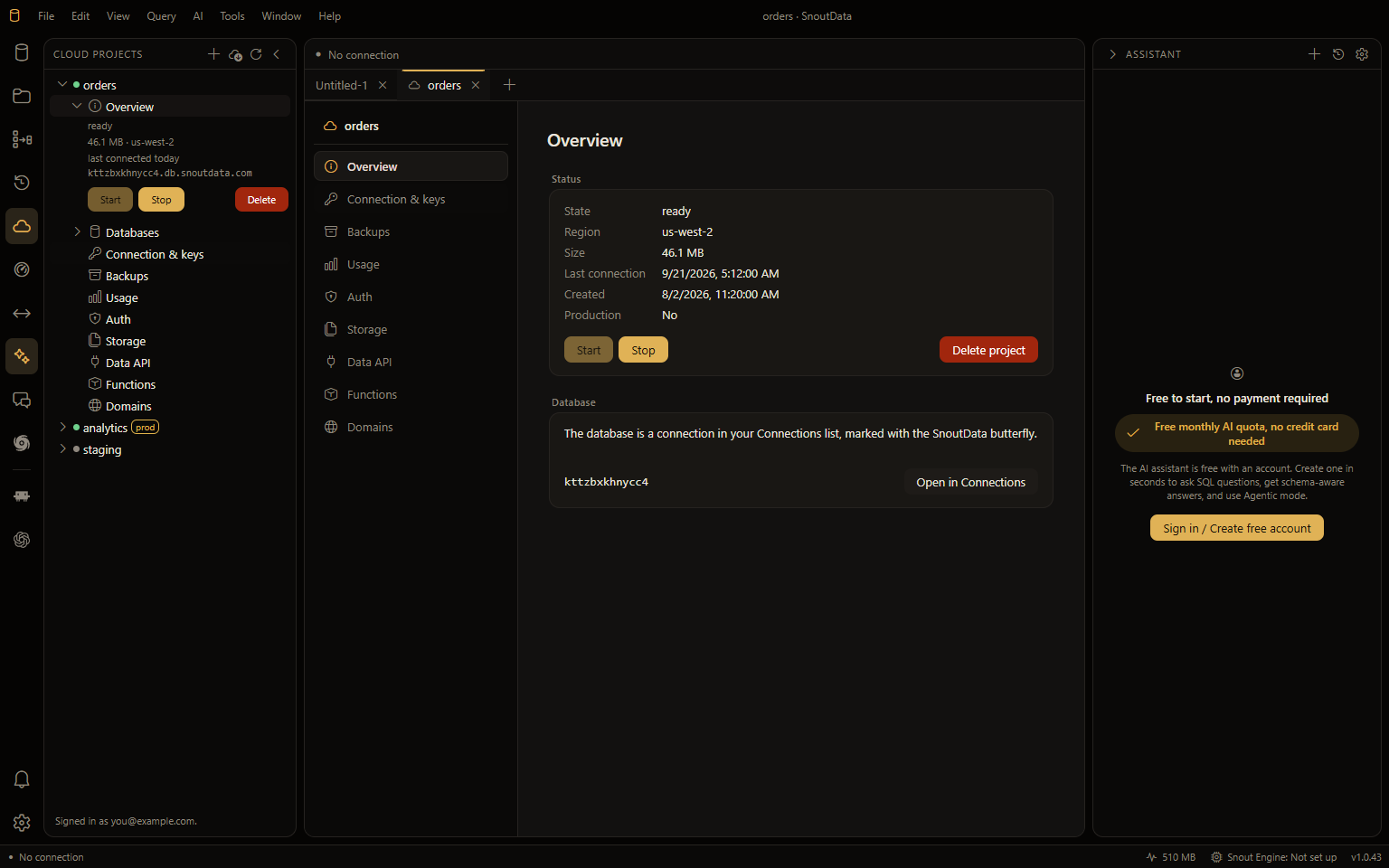
Sign in to the desktop app with the same account you use for the CLI and the dashboard (Settings → Account). The Cloud projects icon in the activity bar opens the panel.
Your databases appear by themselves
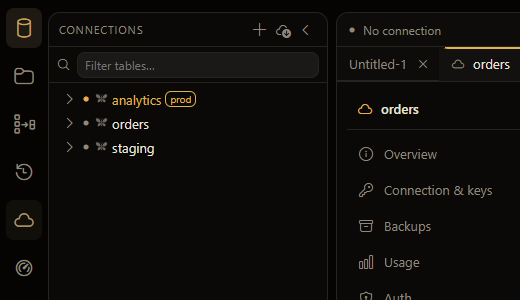
Every database in your account shows up in the Connections list on its own. There is nothing to import. It happens shortly after the app starts, when you sign in, and whenever you open or refresh the Cloud projects panel. It never slows the app's startup.
A cloud database is marked with the SnoutData butterfly instead of the Postgres icon, so you can tell it from the databases on your own servers at a glance.
A few details worth knowing:
- A project is added once. If you delete its connection, it stays deleted. The app remembers which projects it has already added for your account and does not bring them back.
- Nothing is removed for you. Deleting a project in the cloud leaves its connection in your list, with your settings on it, until you remove it yourself.
- The password is stored in your system keychain, like any other connection's, and it never passes through the app's window. Reading it is recorded on the project's activity log.
- A project marked production in the cloud is marked production here too, so the app's production guard applies to it.
Import (the cloud icon in the Connections header) still works, and is how you pick up a new password on a connection you set up before this.
Create a project
Click + in the Cloud projects header (or New project when you have none yet).
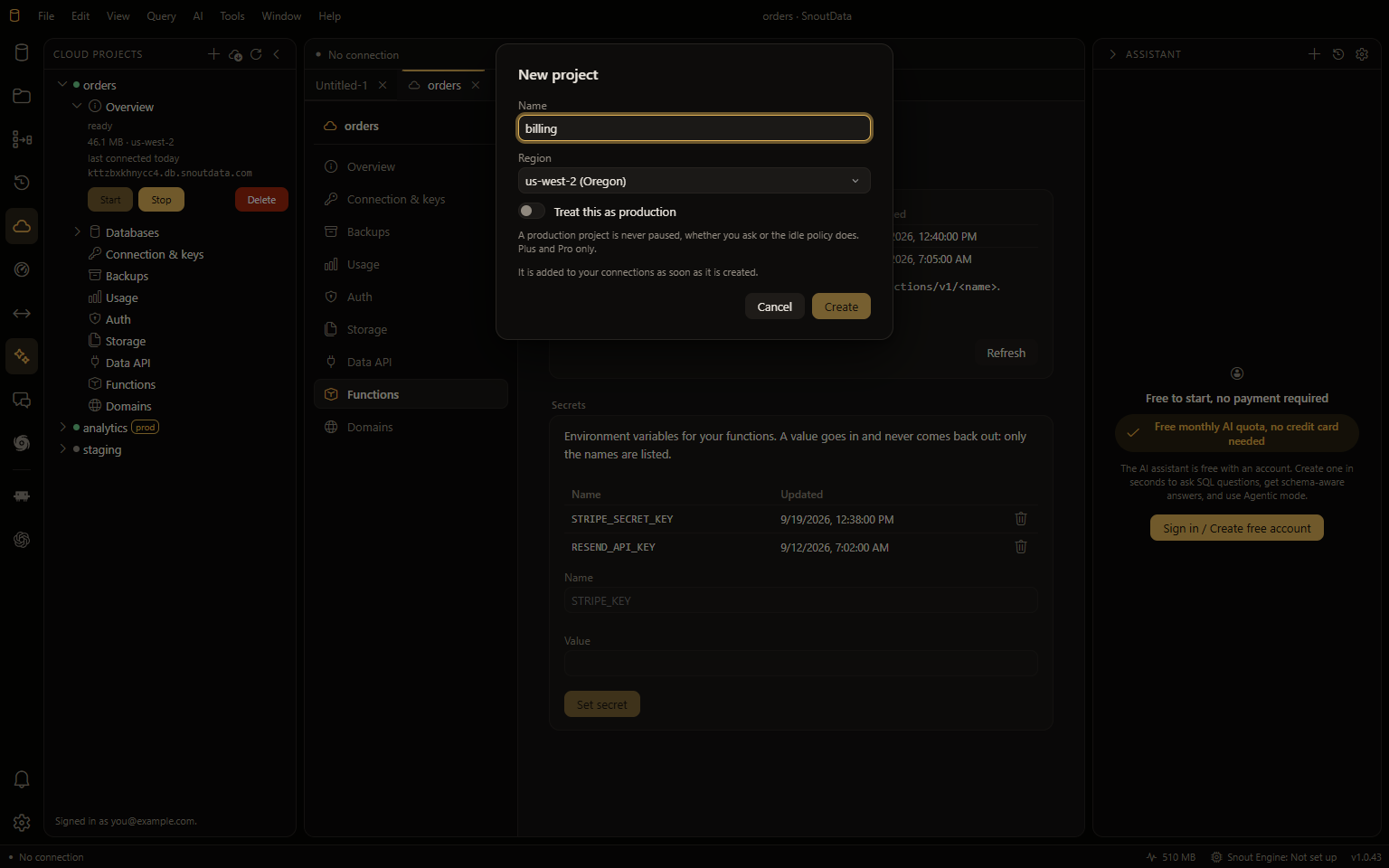
- Name: 1 to 60 characters.
- Region: where the database lives.
- Treat this as production: a production project is never paused, whether you ask or the idle policy does. Plus, Pro and Business only; on Free the control plane refuses it and says so.
The project is added to your connections the moment it is created. It takes about half a minute to start, so give it that long before you connect. If your plan has no room for another project, the dialog stays open and tells you.
The Cloud projects panel
Each project is a row with a status dot: green when it is ready, amber while it is starting or stopping, grey when it is paused, red if it is stuck. Expand it to see what belongs to it:
- Overview: the state, size, region, last connection and address, with Start, Stop and Delete.
- Databases: the project's database. Click it to show its connection in Connections and put it on the current editor tab.
- Connection & keys, Backups, Usage, Auth, Storage, Data API, Functions and Domains: each opens the project's tab at that section.
Start and Stop ask for a change rather than making it on the spot: the host acts on it a few seconds later, so the panel says "asked" and the state catches up. While a project is starting, stopping or restoring, it offers no other action.
The project tab
A project opens as a tab in the editor area, one tab per project, with its sections down the left.
Overview
Everything about the project's state, with Start, Stop and Delete project. Delete asks you to confirm. It is the control plane's soft delete: the project can be brought back for your plan's grace period.
Connection & keys
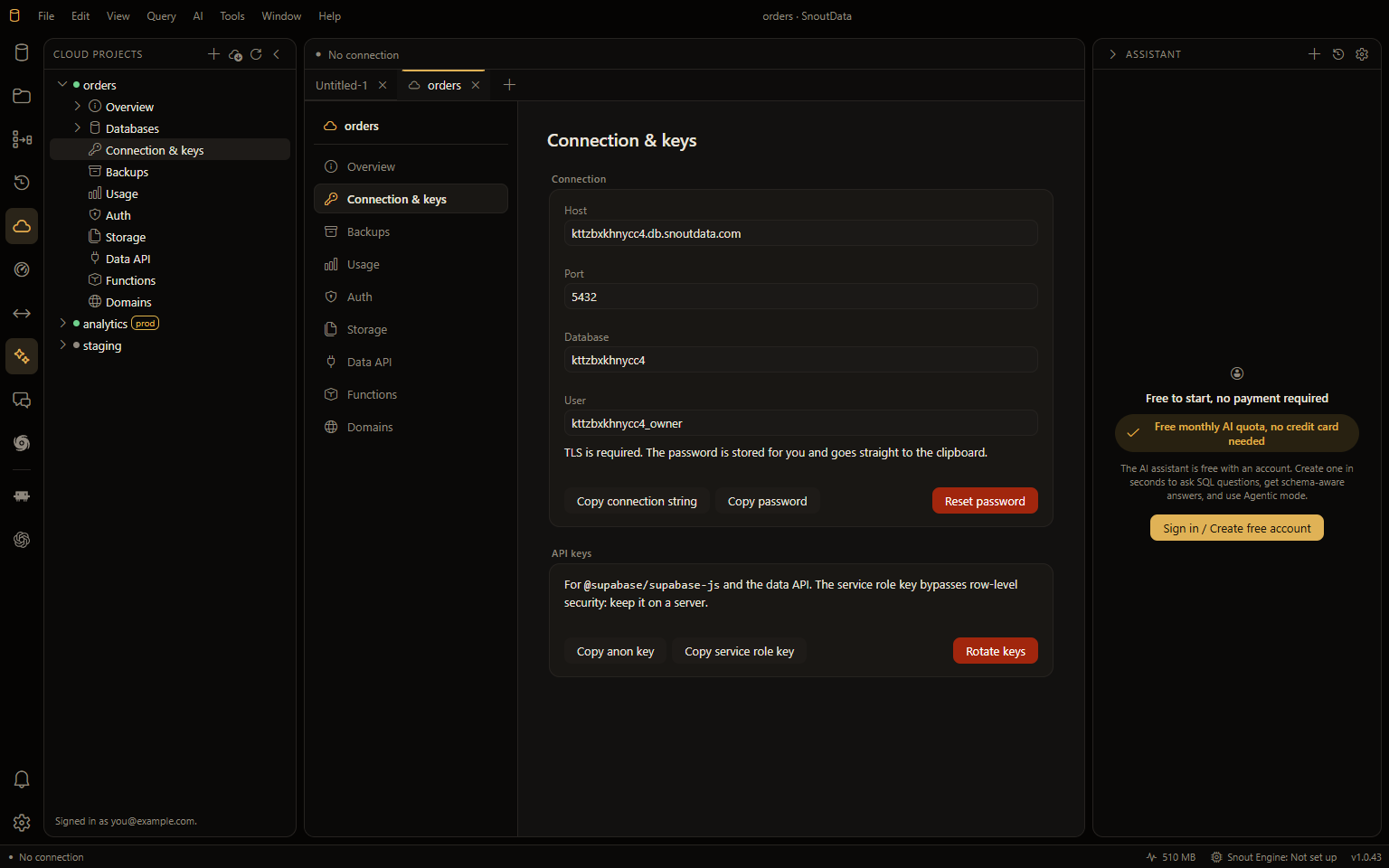
- Host, port, database and user, to paste into any Postgres client. TLS is required.
- Copy connection string and Copy password put them on your clipboard. The password is never shown on screen.
- Reset password issues a new one and updates your connections in the app to use it. Anything else connected with the old password is disconnected when it next reconnects.
- Copy anon key and Copy service role key: the two API keys for the
project API and
@snoutdata/client. The service role key bypasses row-level security, so keep it on a server. - Rotate keys replaces both. Every key already pasted into an app, a deployment or a CI secret stops working, which is why it asks first.
Backups
- Export now takes a
pg_dumpof the whole database. It is taken a moment later, and Download appears when it is ready. The link lasts a few hours. - Restore to a point in time: pick a moment inside your plan's window. The restore goes into a new project beside this one, never over it, so a wrong guess costs nothing. It uses one of your plan's project slots, and the new project appears in your connections. On a plan without point-in-time restore, the section says so.
Usage
Your database's size against your plan's storage limit, and the last 30 days: database size, backup size, connections and compute, one row per day.
Auth, Storage and Data API
Each has a switch. Turning one on starts it in the project within about a minute, and the section shows the address it is served at.
- Auth: sign-up and sign-in for your application's users, with Google and SAML status. Google's
client ID and secret are set on the dashboard's Auth tab or with
snoutdata auth google. Providers are set up in the dashboard. - Storage: files for your application, with how many and how much.
- Data API: REST and GraphQL over your tables. It is on the paid plans; on Free the switch is off and the section says why.
See the project API for what each one serves.
Functions
The functions deployed to the project, with whether they need a JWT, their size and when they were
last deployed. Deploying stays in the CLI (snoutdata functions deploy <name>), because it bundles
your code. See Snout Functions.
Secrets are the environment your functions run with. Set one with a name and a value, or remove one. A value goes in and never comes back out: only the names are listed.
Domains
Serve the project's API at your own domain, with a certificate obtained and renewed for you. Add a hostname, publish the DNS records the section lists, then Verify. Paid plans only; on Free the control plane refuses it and the section says so.
Ask the assistant, or your coding agent
The AI assistant can do all of this for you, by name: "which cloud projects do I have?", "create a project called billing", "turn storage on for orders", "stop staging", "delete the old test project". It asks before it changes anything, and it never sees a password or an API key.
A coding agent running in the app (Claude Code, Codex, opencode) gets the same abilities as tools, and the app asks you before each change it makes.
What is not in the app yet
The control plane has no call for these yet, so the app cannot offer them:
- renaming a project,
- switching production on or off after the project is created,
- sharing an existing project with a team (a new project can be shared from the dashboard when it is created).
Every section is listed for every project. A section your plan does not include says so when you open it, rather than being hidden.