Projects in Studio
SnoutData Studio is a dashboard for your projects, in the app where you work with their data. The Dashboard panel holds two kinds:
- Cloud: your SnoutData Cloud projects. Studio is a third client of the same control plane as the CLI and dashboard.snoutdata.com. Every action makes the same call they make, with your own session, so your plan's limits and every refusal are the same wherever you ask.
- Local: the whole stack running in Docker on your own computer, set up from the panel. For these, Studio is the dashboard.
Both kinds open the same tab with the same menu as the online dashboard, so a project looks the same whether it runs on SnoutData Cloud or on your laptop. When the control plane says no, the app shows its own words: amber for a refusal (for example "a production project is never paused"), red when something went wrong.
Sign in
Sign in to Studio with the same account you use for the CLI and the dashboard (Settings → Account). The Dashboard icon in the activity bar opens the panel, with Local and Cloud groups. Local projects need no account.
Your cloud databases appear by themselves
Every database in your account shows up in the Connections list on its own. There is nothing to import. It happens shortly after the app starts, when you sign in, and whenever you open or refresh the Dashboard panel. It never slows the app's startup.
A SnoutData database, cloud or local, is marked with the SnoutData butterfly instead of the Postgres icon, so you can tell it from the databases on your own servers at a glance.
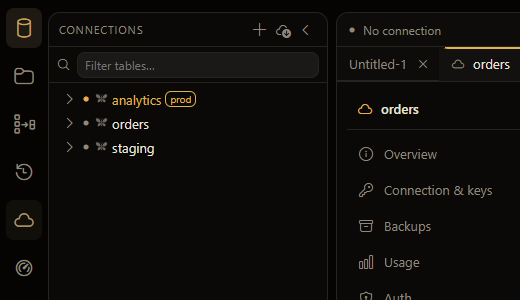
A few details worth knowing:
- A project is added once. If you delete its connection, it stays deleted. The app remembers which projects it has already added for your account and does not bring them back.
- Nothing is removed for you. Deleting a project in the cloud leaves its connection in your list, with your settings on it, until you remove it yourself.
- The password is stored in your system keychain, like any other connection's, and it never passes through the app's window. Reading a cloud project's password is recorded on its activity log.
- A project marked production is marked production in Connections too, so the app's production guard applies to it.
Import (the cloud icon in the Connections header) still works, and is how you pick up a new password on a connection you set up before this.
Create a project
Click + in the Dashboard header and choose where it runs.
In SnoutData Cloud:
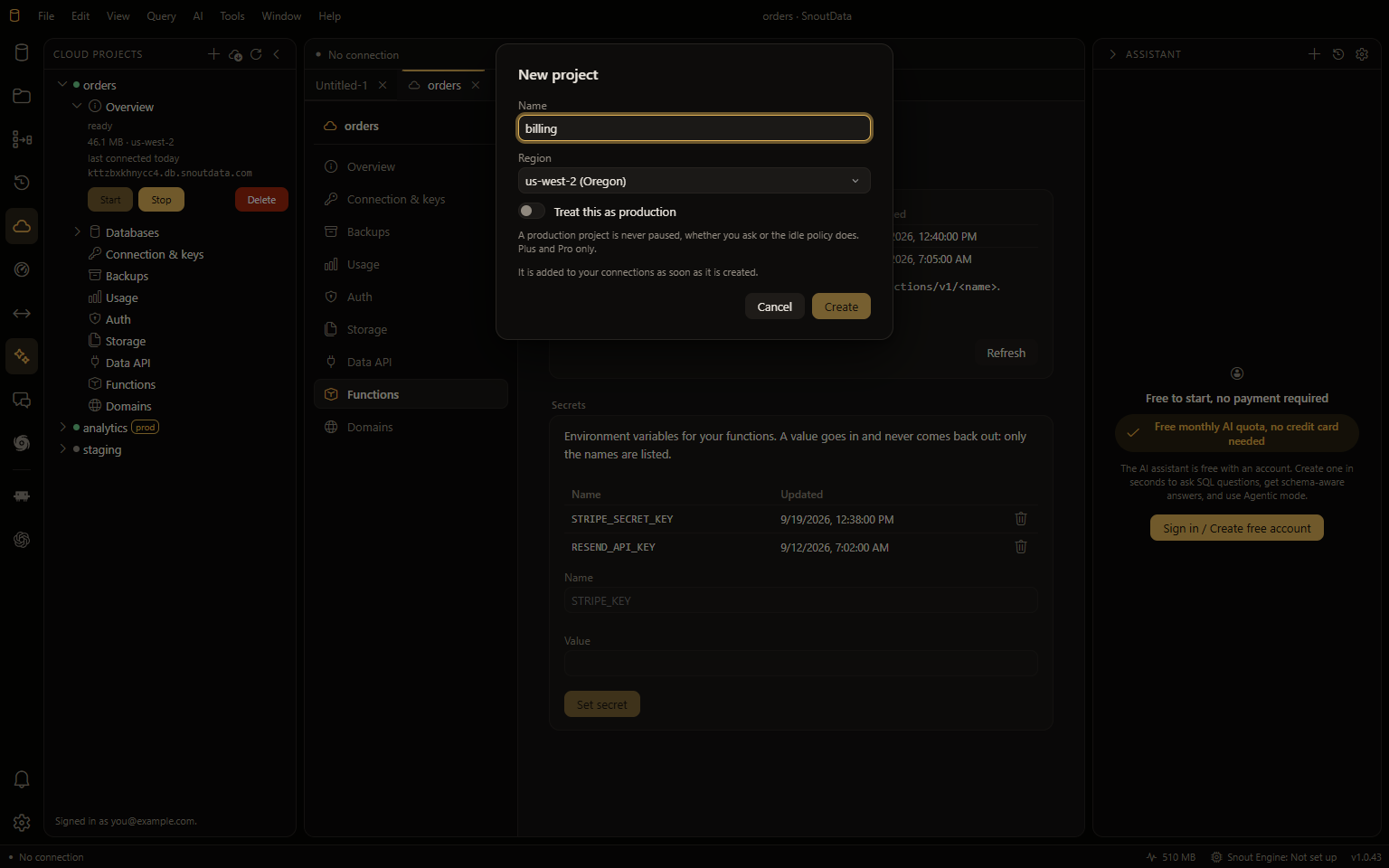
- Name: 1 to 60 characters.
- Region: where the database lives.
- Treat this as production: a production project is never paused, whether you ask or the idle policy does. Plus, Pro and Business only; on Free the control plane refuses it and says so.
The project is added to your connections the moment it is created. It takes about half a minute to start, so give it that long before you connect. If your plan has no room for another project, the dialog stays open and tells you.
Local, in Docker: a short setup checks Docker first (installed, running, recent enough Compose,
enough memory) and says what to do about anything missing. It then asks for a name, a folder and
the two ports, how users sign in, and where files are kept, downloads the
published stack, and starts it. The project's keys are made for it alone and live
in the .env in its folder, which is their only copy.
The Dashboard panel
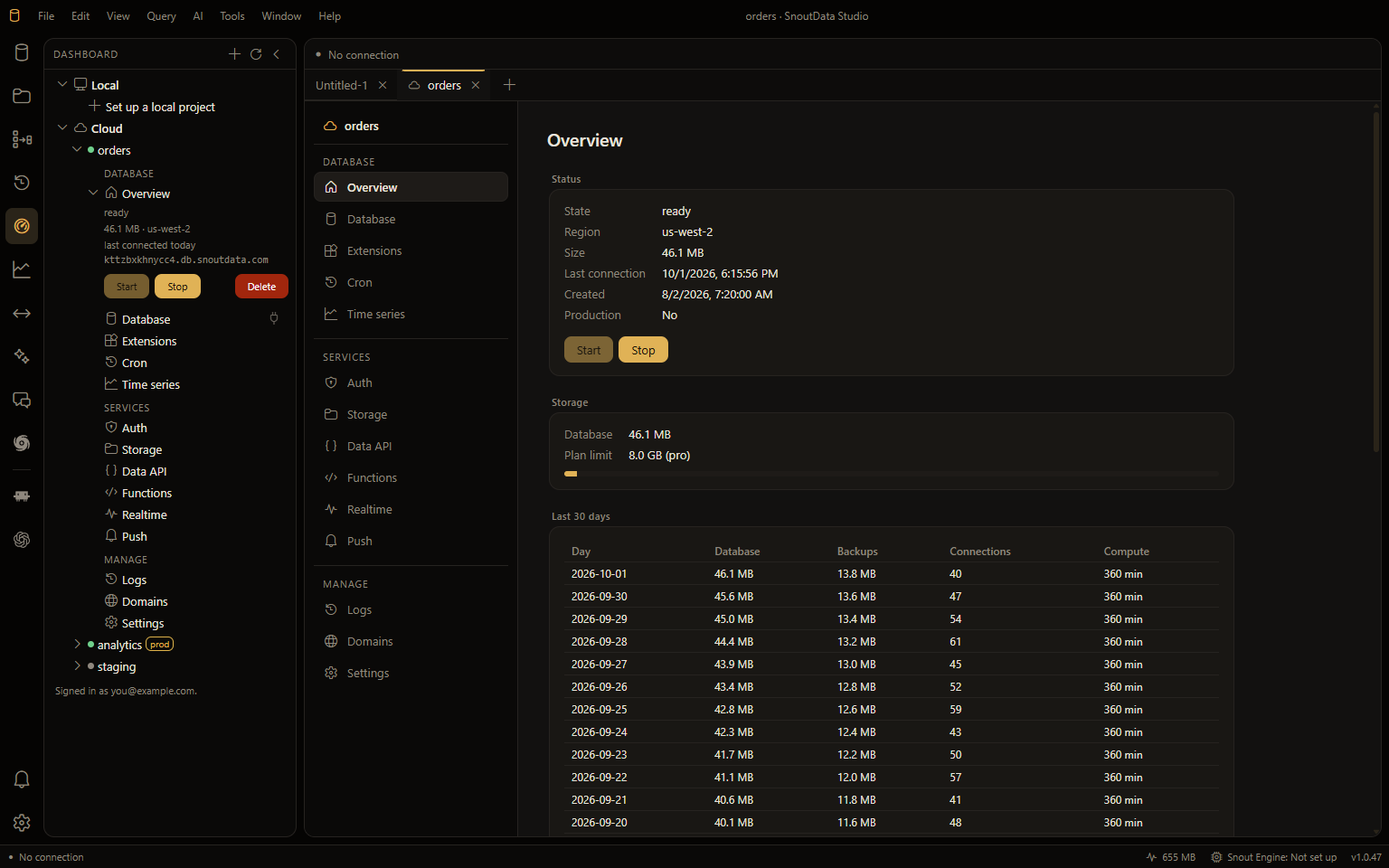
Each project is a row with a status dot: green when it is running or ready, amber while it is starting or stopping, grey when it is stopped or paused, red if something is wrong. Expand it and it shows the same menu the online dashboard has:
- Database: Overview, Database, Extensions, Cron, Time series.
- Services: Auth, Storage, Data API, Functions, Realtime, Push.
- Manage: Logs, Domains, Settings.
Overview opens in place, with Start and Stop, so you can run a project without opening a tab. Every other row opens the project's tab at that section. The Database row also carries a plug: click it to show the project's database in Connections.
A cloud project's Start and Stop ask for a change rather than making it on the spot: the host acts on it a few seconds later, so the panel says "asked" and the state catches up. While a project is starting, stopping or restoring, it offers no other action.
The project tab
A project opens as a tab in the editor area, one tab per project, with the menu down the left.
Overview
- Status: the state, with Start and Stop. A production project asks before it stops.
- The numbers: for a cloud project, its size against your plan's limit and the last 30 days (database size, backup size, connections, compute). For a local one, its size, open connections, files in storage and how long it has been up, and the health of every service.
- Work on it: run a statement in a new SQL tab on the project's database, browse its tables, or go to Settings.
- API keys: copy the anon key and the service role key for the project API and
@snoutdata/client. The service role key bypasses row-level security, so keep it on a server. Rotate keys replaces both; every key already pasted into an app, a deployment or a CI secret stops working, which is why it asks first. - Recent activity, on a local project: what the app has done to it (started, stopped, settings changed, keys copied, exports, deploys).
Database
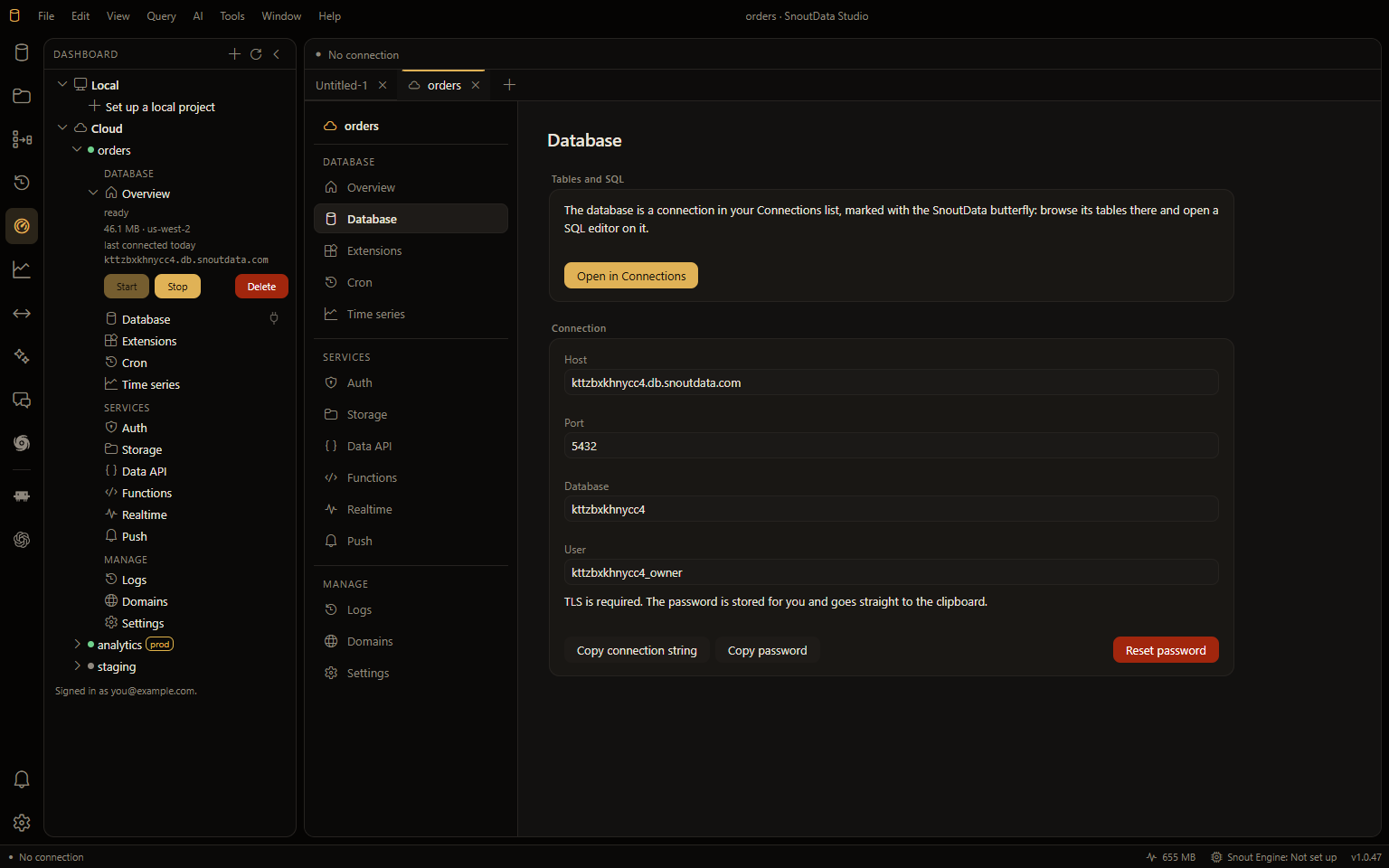
- Open in Connections: the database is already a connection; browse it and query it there.
- Host, port, database and user, to paste into any Postgres client. A cloud project requires TLS; a local one listens on this computer only.
- Copy connection string and Copy password put them on your clipboard. The password is never shown on screen.
- On a cloud project, Reset password is here; on a local one it is under Settings.
Extensions, Cron and Time series
The project's own Postgres, as the online dashboard shows it:
- Extensions: the catalog, with the ones already on first. Switch one on or off.
- Cron: switch pg_cron on, then schedule jobs from presets or your own SQL, pause them, read their runs and delete them.
- Time series: SnoutTime series tables, their partitions and rollups.
Auth
- Users: list and search them, add one, confirm, ban or delete.
- On a cloud project, the Auth switch, and Google and SAML status.
- On a local project: Sign in with Google and GitHub (your own OAuth client, with the steps and the exact callback to register), Redirect addresses, Sign-ups (confirm without email, refuse new sign-ups), the Mail server auth sends through, and Email templates: edit the five account emails with a preview, or go back to the built-in ones.
Storage
Buckets and files: create and delete buckets, upload and download files. A cloud project has the Storage switch here, with how many files and how much.
Data API
Two tabs. Settings has the switch that turns REST and GraphQL on (paid plans on Cloud; on Free
the switch is off and the section says why). Docs is the reference for your own tables, with
@snoutdata/client snippets.
Functions
- On a cloud project: the deployed functions, with whether they need a JWT, their size, their
memory and workers, and when they were last deployed. Memory and concurrency changes one
function's memory and workers within your plan; see
Memory and concurrency. Deploying stays in the CLI
(
snoutdata functions deploy <name>), because it bundles your code. - On a local project: your functions are folders (
functions/<name>/index.tsin the project's folder). Create one from a template, edit it in your own editor, and Deploy functions. Each can be made callable with No key needed, for a webhook's receiver. Memory and time sets each function's memory, the memory they share, and how long a call may run. - Secrets are the environment your functions run with. Set one with a name and a value, or remove one. A value goes in and never comes back out: only the names are listed.
See Snout Functions.
Realtime
The tables that stream their changes, and the subscriptions open now.
Push
The Push switch on a cloud project. See Push.
Logs
Postgres's own record of the statements it has run, heaviest first. On a local project, also every service's log straight from Docker, and the activity log.
Domains
- On a cloud project: serve the project's API at your own domain, with a certificate obtained and renewed for you. Add a hostname, publish the DNS records the section lists, then Verify. Paid plans only.
- On a local project: the public address clients reach it at, the header a TLS proxy in front of it writes the caller's address into, and a ready Caddy configuration for your own domain.
Settings
- On a cloud project: Backups (Export now takes a
pg_dump, with Download when it is ready; Restore to a point in time goes into a new project beside this one, never over it) and Delete this project, the control plane's soft delete, recoverable for your plan's grace period. - On a local project: Password (reset the owner's), Production, Running, Export
(a
pg_dumpinto the project'sbackups/folder), Put it back (restores an export over the project: it is restored beside the database first, so a restore that fails changes nothing), Network (the ports, and whether other devices on your network can reach it), the largest upload, and Remove, which keeps the data and folder unless you ask otherwise.
Ask the assistant, or your coding agent
The AI assistant can do this for you, by name: "which cloud projects do I have?", "create a project called billing", "turn storage on for orders", "stop staging", "delete the old test project". It asks before it changes anything, and it never sees a password or an API key.
A coding agent running in the app (Claude Code, Codex, opencode) gets the same abilities as tools, and the app asks you before each change it makes.
What is not in the app yet
- Renaming a cloud project, switching production on or off after it is created, and sharing an existing project with a team: the control plane has no call for these yet. (A new project can be shared from the dashboard when it is created.)
- On a production cloud project, the dashboard asks you to confirm a change made from its SQL sections; the app does not ask yet, so those changes are refused there and the section says so.
- Push on a local project: the self-hosted stack does not run it.
Every section is listed for every project. A section your plan does not include says so when you open it, rather than being hidden.